kip the Complicated Workflows — Deploy MiniMax-H3 Locally in One Click with Herdsman and Generate 15-Second High-Quality Videos
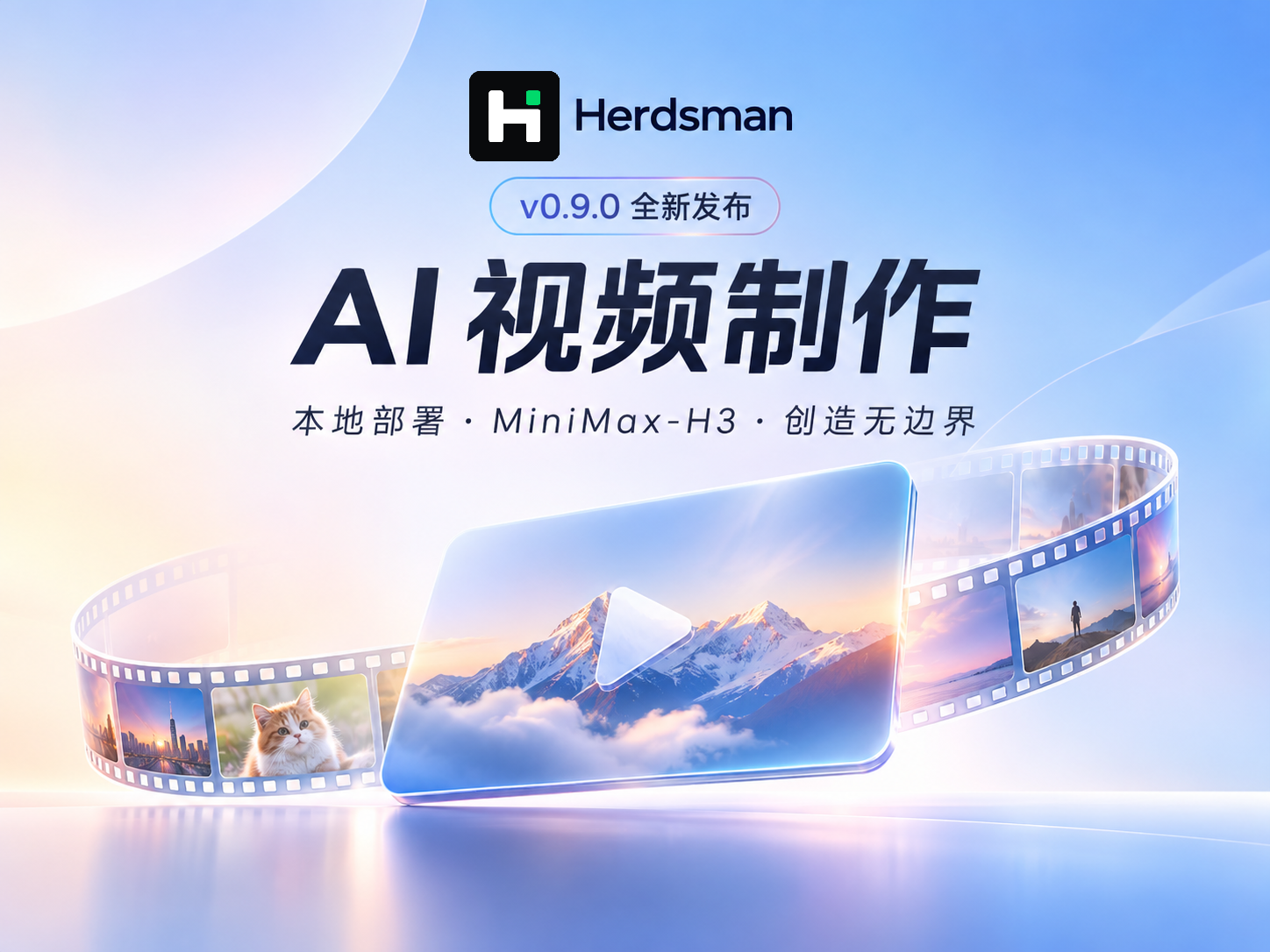
As an AIGC creator, I’ve been closely following open-source video models. When MiniMax-H3 was released with open weights, it looked very promising — native stereo audio, clips up to 15 seconds, resolutions up to 2K, multiple aspect ratios, and strong performance in text-to-video and image-to-video.
However, actually running it locally turned out to be a major hurdle for many people.
Most tutorials point to ComfyUI. The moment you open it and see the endless canvas filled with nodes and tangled connections, beginners often give up immediately. That’s one of the biggest pain points. Even after downloading the model weights from Hugging Face or other communities, you still face environment setup issues, dependency conflicts, VRAM management problems, and various launch errors. Many creators eventually abandon local deployment and stick with paid cloud APIs.
I went through the same struggles myself. Then I discovered Herdsman, a local inference engine, and finally experienced how simple local deployment of MiniMax-H3 can be.
Why Herdsman?
It handles the complicated parts for you:
- One-click download of the MiniMax-H3 model (no manual hunting for weights, extracting, or placing files)
- One-click launch after download
- Direct access to Herdsman’s video workbench for generation
- Supports 768P and 2K resolution
- Multiple aspect ratios
- Maximum 15 seconds per clip
- Compatible with both NVIDIA and AMD GPUs
- Fully supports Windows 11
The whole process has almost zero learning curve — ideal for beginners and creators who just want to generate videos quickly.
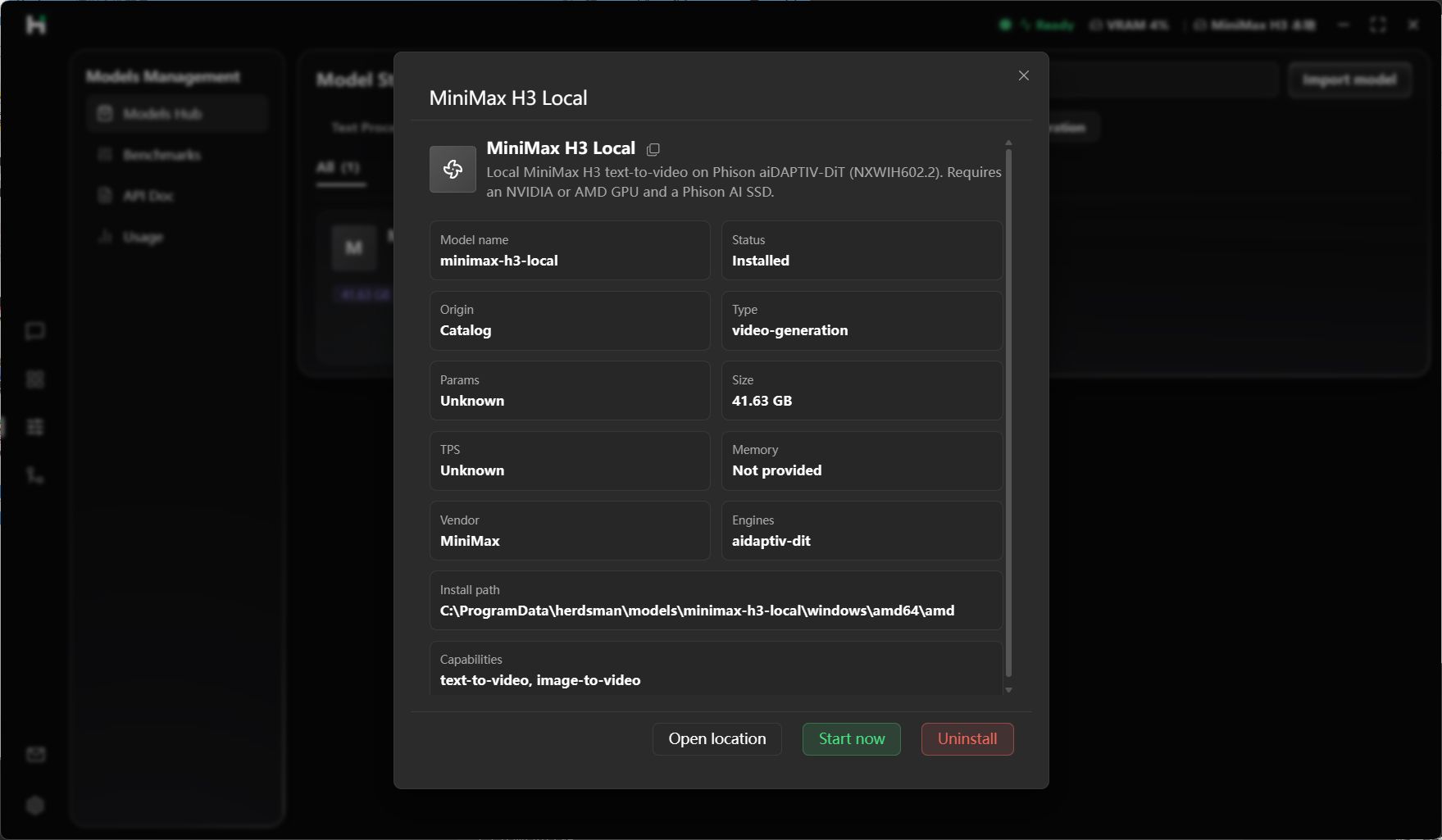
Real-World Experience (Step-by-Step)
Visit the official FlowyAIPC website to download the Herdsman local inference engine: https://flowyaipc.com/ai-engine
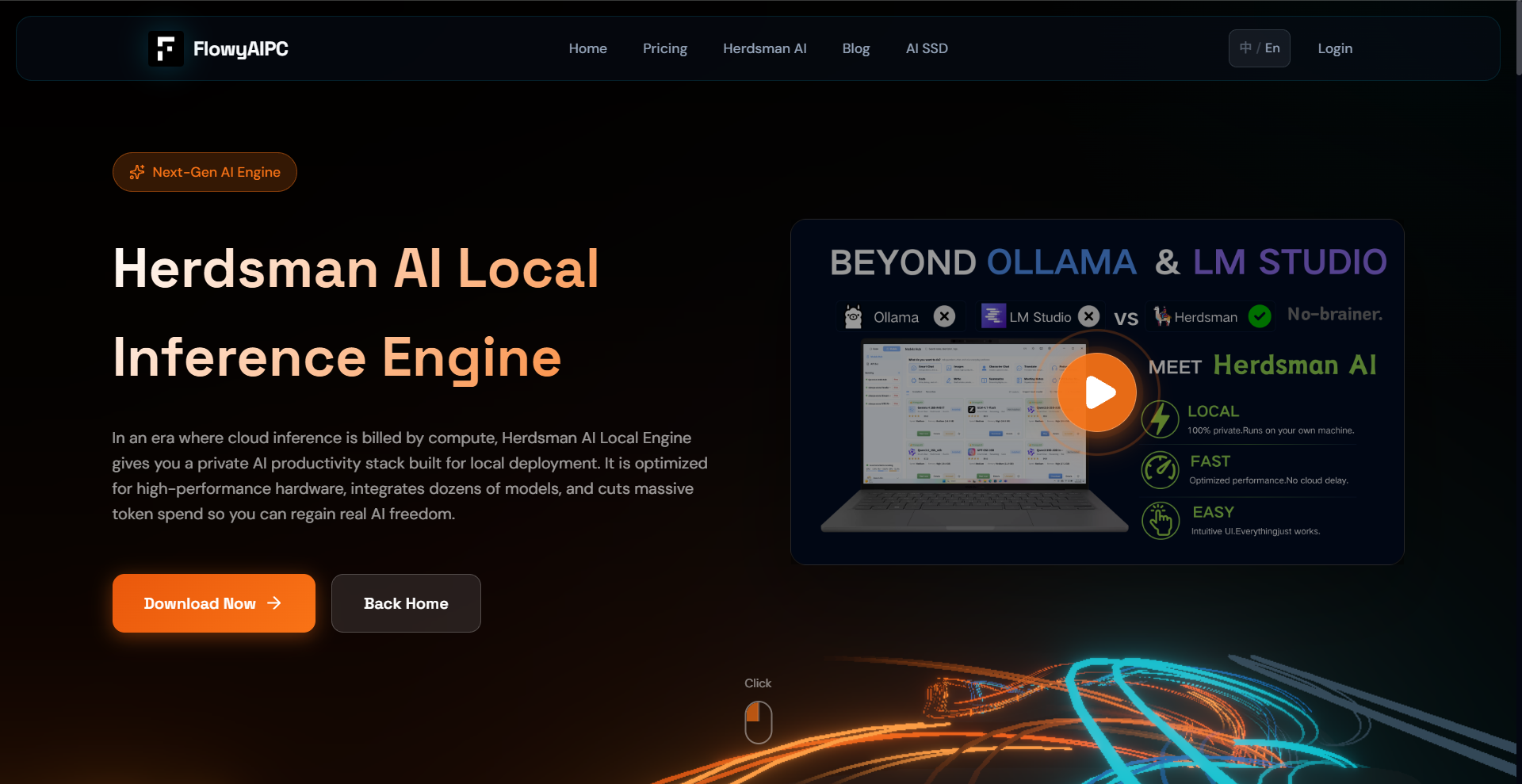
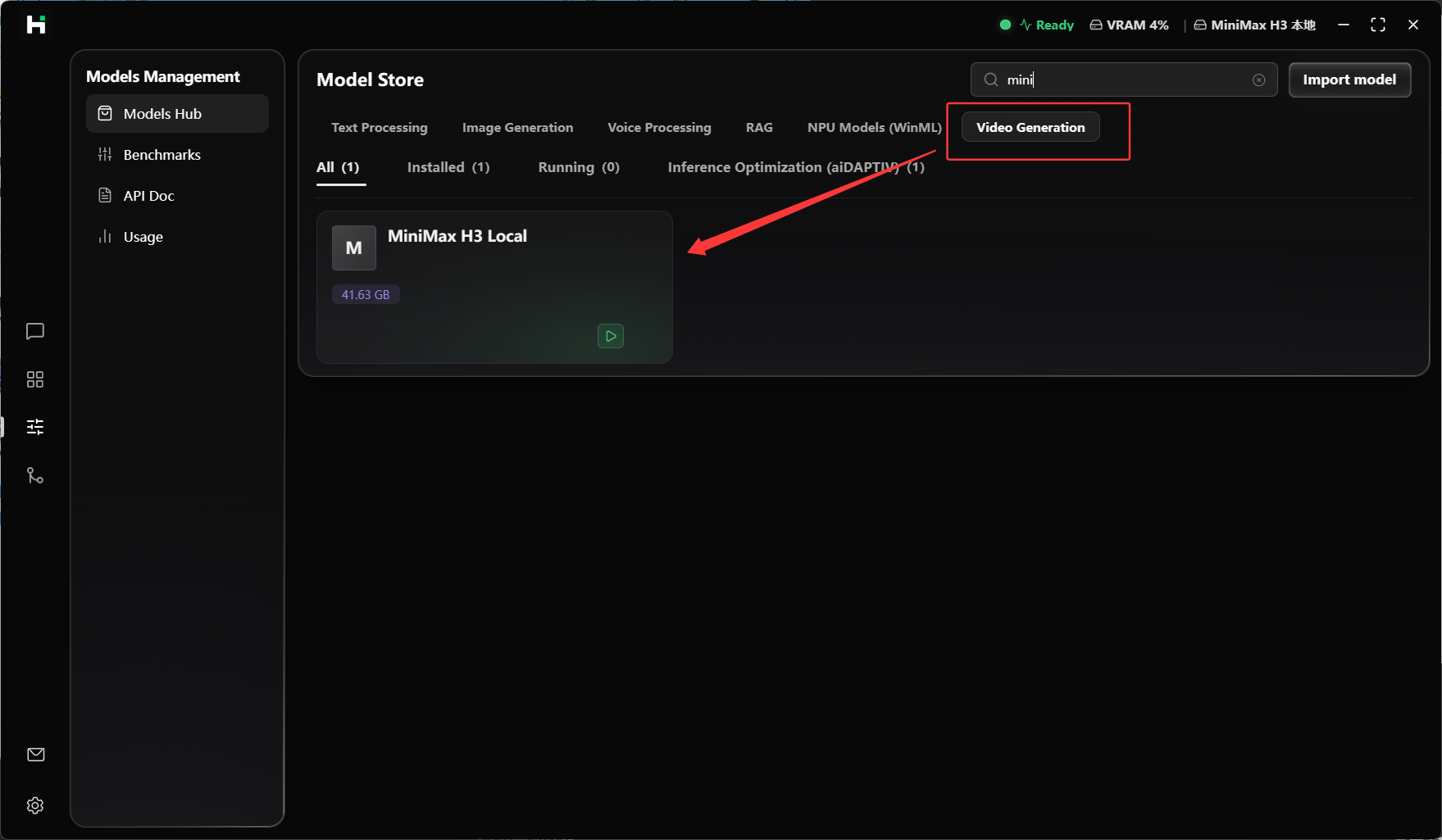
Once you’ve opened Herdsman, navigate to the model store, search for or locate "MiniMax-H3," and click download. After the download is complete, you can launch it with a single click—the software automatically handles all dependencies and file paths.
Head over to the video workspace within Herdsman, enter your prompt (or upload a reference image), select your desired resolution (768p/2K), aspect ratio, and duration (up to 15 seconds), and you’re ready to generate. The interface is clean and straightforward, free from complex node-based workflows.
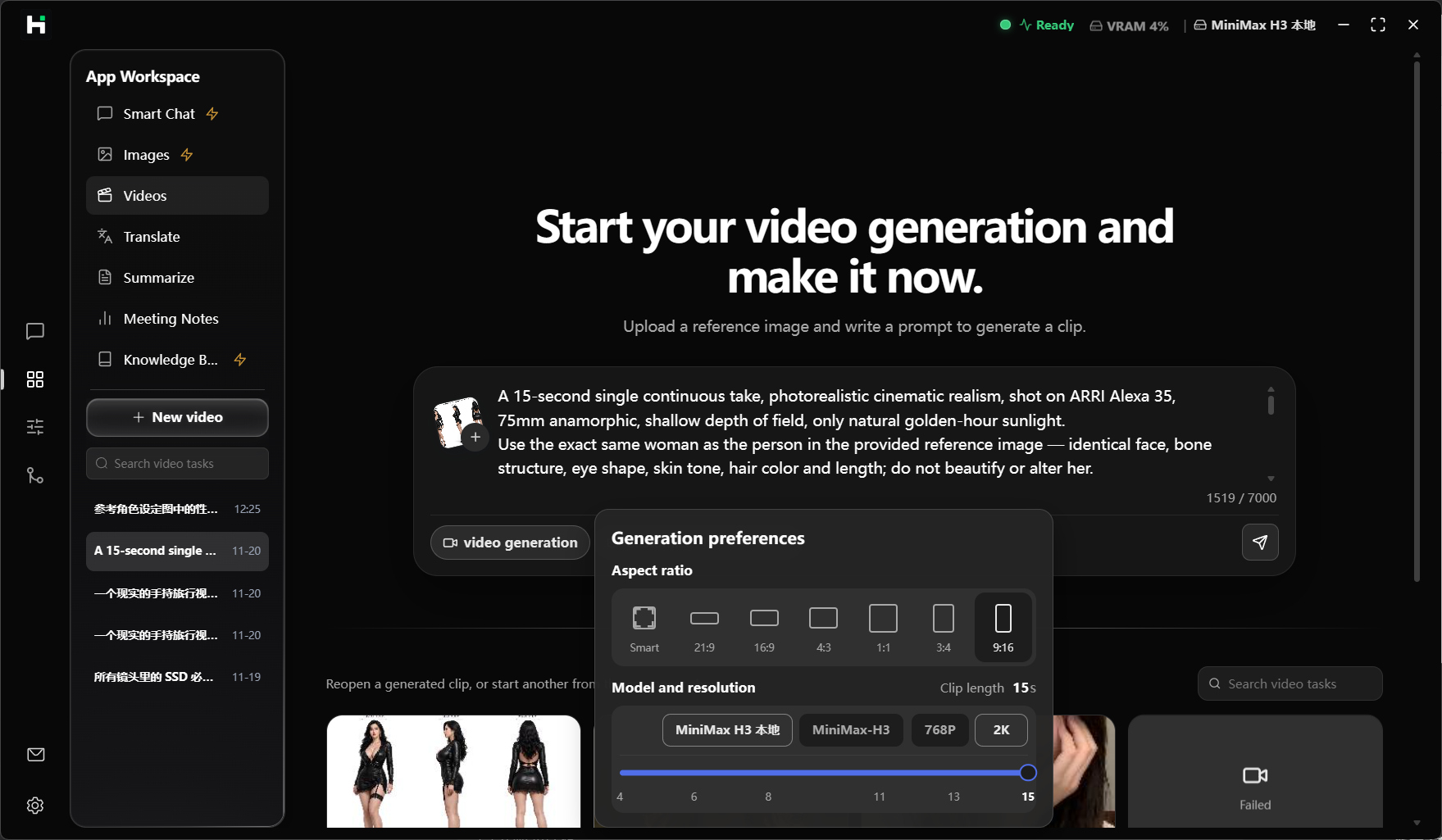
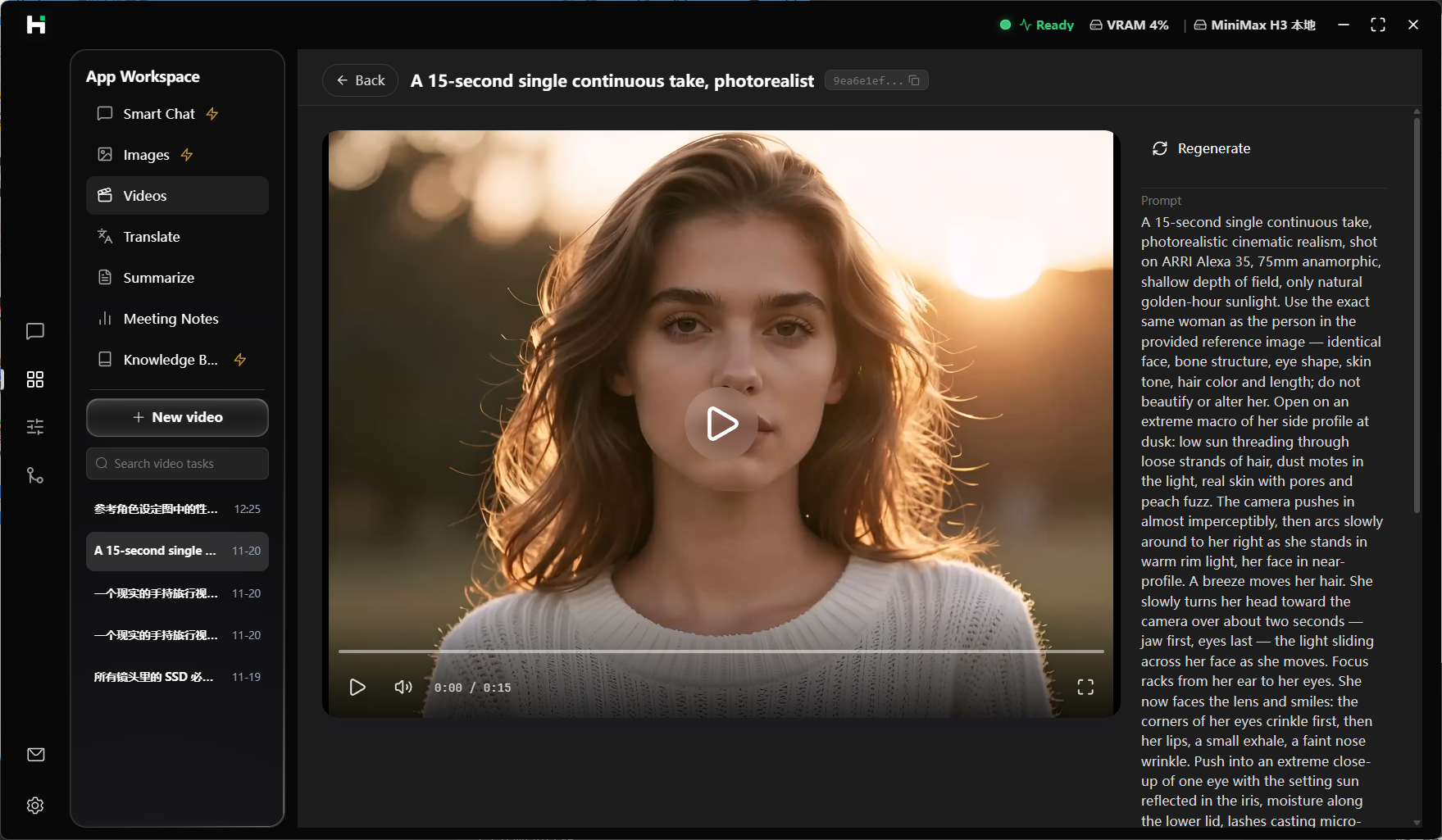
My takeaway after using it: I’m finally free from the frustration of ComfyUI’s overly complicated workflows. Both model downloading and launching are now "one-click" processes, and the generation workflow itself is incredibly smooth. For creators who need to frequently test prompts and produce content quickly, this offers a significant boost in efficiency.
Who Is This For?
- Beginners who want to run MiniMax-H3 locally but are put off by ComfyUI
- Users who already downloaded the weights but can’t get them running
- Creators who value privacy and prefer not to rely on cloud APIs every time
- Users with NVIDIA or AMD GPUs running Windows 11
Of course, local video generation still has hardware requirements (VRAM and system RAM). Choose the resolution that matches your setup. But at the tool level, the barrier has been lowered dramatically.
If you’re looking for a truly beginner-friendly way to run MiniMax-H3 locally, I highly recommend trying Herdsman. Follow the steps above and you can start generating in just a few minutes.
Download link again:
https://flowyaipc.com/ai-engine
Hope this practical guide helps more fellow creators. Feel free to share your experience in the comments — let’s make local AI video generation easier together.